Shopify Product Ad Generator: Static Ads From Your Catalog

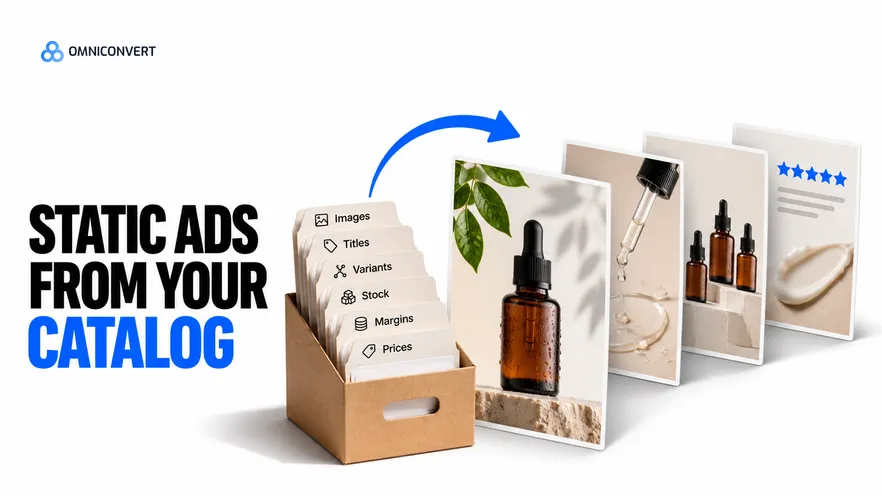
- A generator reads your catalog fields, so dirty titles, stale prices and missing margins become errors inside the ad.
- Four templates cover most catalogs: product hero, offer, variant range and proof card.
- Route products to templates by rule, using margin, stock and review count, so the rule decides and nobody argues over each SKU.
- Do not generate one ad per SKU. Low-margin and low-stock products get no ad until the data says they should.
- Dynamic catalog ads are a Meta feature built from a product feed, and a different job from templated statics.
- Check each output against the live product page for price, product shape and claim before it ships.
- Omniconvert Commander composes static creative from customer data with your existing product imagery.
A Shopify product ad generator reads your catalog and turns each product record into a static ad. That makes the catalog the real brief. If the title is internal shorthand, the price is stale or the cost field is empty, the generator copies the mistake into every ad it makes. The tool is rarely the weak point.
The stores that get the most from generated ads do the unglamorous work first. They clean the data, build a few templates and write down which products earn an ad.
Omniconvert Commander (formerly Nexus) is the AI eCommerce growth engine for Shopify brands: it reads your store, ad and customer data, ranks growth opportunities by profit impact, and builds the campaigns to act on them, and you approve what goes live.
Cut-outs, scenes and fidelity belong to AI product ad images and the pillar on AI product photography for eCommerce ads. Here the focus is catalog structure and templates.
What a Shopify product ad generator does with your catalog
A Shopify product ad generator is defined as software that reads product records from your catalog and fills a fixed ad layout with them, producing finished static ads for review.
A static ad template is defined as a fixed layout with named slots, such as image, headline, price or offer and proof, that stays the same while the product changes.
Picture a Monday export: 400 products, one template, 400 ads queued before lunch. Coverage looks complete and nobody has to choose. A few weeks later the budget is split across hundreds of near-identical ads, none has enough spend to teach anything, and a handful promote products that are low on margin or nearly out of stock. Cap the first batch at a short list of products that pass your margin and stock rules.
The catalog fields a generator reads, and how each goes wrong
| Catalog field | What the ad does with it | How it goes wrong | Fix at the source |
|---|---|---|---|
| Title | Becomes the headline or product label | Internal codes, keyword stuffing, truncated names | Write a short customer-facing name in a separate field |
| Price and compare-at price | Shows the price or a before and after offer | A stale compare-at price, or a sale that has ended | Reconcile prices with the live page before each batch |
| Variants | Feeds the colour or size range in the variant template | Vague names such as Option 1, or variants sold out | Name each variant plainly and drop the ones out of stock |
| Images | Supplies the product picture the layout is built around | Cluttered backgrounds, low resolution, lifestyle crops | Keep one clean, high-resolution main image per product |
| Margin (cost per item) | Never shown, but decides which products get an ad | Empty cost fields, so every product looks equally good | Fill in cost per item, then rank by margin after returns |
| Stock | Never shown, but stops ads for products that cannot ship | Ads running on products that sell out within days | Exclude low-stock products and rerun the check weekly |
Margin is the field most stores skip. Margin per product is where True Profit per ad starts, and POAS builds on it.
Four static ad templates that cover most catalogs
1. Product hero. One product on a clean background, a short benefit headline, the price. Use it for products people already know by name. Protect the image slot: it must match the product exactly.
2. Offer. The same product with the offer as the headline: a bundle, a compare-at price, free shipping above a threshold. Use it when price is the reason to act. Pull the offer from a field, so it cannot outlive the sale.
3. Variant range. Three or four variants side by side, such as colours or sizes. Use it for products where choice is the draw. The template needs variant names and images that exist for every variant shown.
4. Proof card. One product, one real review line or rating, and the product name. Use it for products with a track record. The proof slot takes only a quote or figure you can trace to a real source. If you cannot trace it, leave the card unused.
Templates fix the layout, and you still choose the angle. For the copy that fills the headline slot, see AI ad copy generator.
Which products go into which template
Write the rules in plain language before you generate anything. Adjust these to your store:
- Product hero: margin clears your break-even after returns, stock is healthy, the main image is clean.
- Offer: the product has a live compare-at price or bundle, and the discounted margin still clears break-even.
- Variant range: the product has at least three in-stock variants with their own images.
- Proof card: the product has enough reviews that one quote is not a lone outlier.
- No ad yet: low margin, low stock or no clean image. Fix the data, then revisit.
A product can pass more than one rule. Start it in the template that fits its strongest reason to buy.
Build static ads from your catalog in six steps
- Audit the catalog fields the generator reads. Export your products and check titles, prices, variants, images, margins and stock for gaps, stale values and internal jargon.
- Fix the data at the source. Correct titles, compare-at prices, variant names and missing cost values in the store, so every later ad reads the same clean record.
- Build three or four static ad templates. Design a product hero, an offer, a variant range and a proof card, each with named slots and a clear rule for what fills them.
- Route products to templates by rule. Write one rule per template using margin, stock, variant count and review count. Leave out products that fail every rule.
- Check every output against the live product page. Compare price, product shape, colour and every claim in the ad with the product page and the review source.
- Launch a small batch and read it by profit. Launch a few products per template, hold them for a full purchase cycle, and judge them on profit after returns and discounts.
QA and launch for catalog-built static ads
Generated statics fail in four predictable ways. The price differs from the page. The product image is redrawn and no longer matches the item. A review line is paraphrased into words the customer never wrote. A variant shown is sold out. Check all four on every output.
Launch small. A few products per template is enough to see which template and which product type earn their place. Treat the launch as a test with a stop rule.
Deciding which template wins is a testing question, and structured testing is what a result like this rests on.
AliveCor used Omniconvert to run a structured A/B testing programme and achieved +21% conversion rate, +5% revenue per visitor, and 94% statistical relevance across their experiments. [Omniconvert, AliveCor case study]
Read results in profit, not clicks, because a template that wins on click rate can still lose on margin. For how many new ads a month your volume needs once the first batch works, see how many new ads per month.
Product catalog ads are a different job
Product catalog ads, called dynamic product ads or Advantage+ catalog ads on Meta, depend on a product feed and on Meta's own catalog tooling. Meta decides which product each person sees.
Templated static ads work the other way round. You decide which products get an ad, which template carries it and which angle it argues. Each ad is a finished image that you reviewed before launch.
Omniconvert Commander sits on the static side. It generates launch-ready assets from customer data, composes the creative with your existing product imagery, and ranks creative variants by CLV-weighted angle. It does not sync a product feed and it does not run dynamic catalog ads. If you are comparing it with a creative testing tool, see Omniconvert Commander vs Marpipe.
FAQ: Shopify product ad generators and catalog ads
What is a Shopify product ad generator?
A Shopify product ad generator is software that reads your product catalog and produces ready-to-run ads from it. It fills a layout with a product image, title, price or offer and a line of copy. The output is a set of static ads that you review before they go live.
What is the difference between static ads from a catalog and dynamic catalog ads?
Static ads are finished images, made once from a template and approved by you. Dynamic catalog ads are a Meta feature: Meta assembles each ad at delivery time from a product feed, based on what a person viewed. They are a different job with a different setup, and a templated static workflow does not replace them.
Which catalog fields matter most for static ads?
Title, price and compare-at price, the main image, variant names, cost per item and stock level. The title and image decide how the ad reads. The price must match the page. Cost per item and stock decide whether the product deserves an ad at all.
How many static ad templates does a store need?
Three or four is enough for most catalogs. A product hero, an offer, a variant range and a proof card cover the main reasons a person clicks. More templates raise the review load without adding a new reason to buy, so add one only when a product type fits none of the four.
Should I make an ad for every product in my catalog?
No. Ads for low-margin, low-stock or rarely bought products spend budget where it cannot pay back. Start with the products that pass your margin, stock and review rules, and add more as the first batch returns profit.
How does Omniconvert Commander help with static ads from my catalog?
Omniconvert Commander reads your store, ad and customer data and generates launch-ready static creative from it, composed with your existing product imagery. It ranks creative variants by CLV-weighted angle, and you approve what goes live. It does not sync a product feed or run dynamic catalog ads.
Clean data, few templates
A generator multiplies whatever your catalog holds, good or bad. Clean the six fields, build four templates, and write the rule that decides which products earn an ad. Check every output against the live page and launch a small batch. Then read the result in profit and let that, not coverage, tell you what to add next.